
Create a session
Add a new ice time, dryland or video session that parents can book.
- 1
In your Instructor portal click Create a session.
- 2
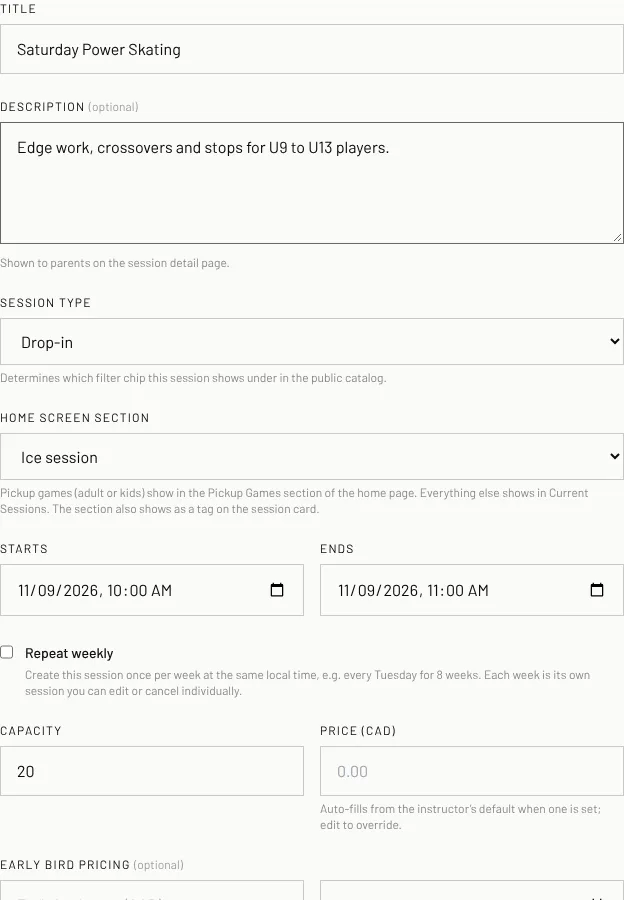
Type a Title (for example "Power Skating & Edge Work Drop-In") and a Description parents will read.
- 3
Pick the Session type and the Home screen section (Ice, Dryland, Goaltending, Video, or Pickup game for adults or kids).
- 4
Set Starts and Ends, the Capacity (how many players) and the Price (CAD).
- 5
Optional: early bird price, birth year range and skill range.
- 6
You are already picked as the Instructor. Choose the Facility (rink). Not in the list? Click Add a facility.

- 7
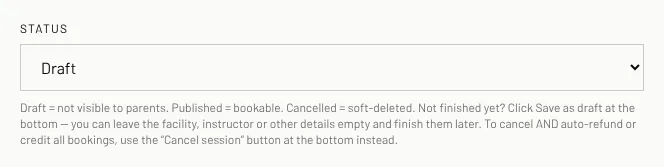
Set Status to Published so parents can book it (or leave it on Draft to finish later), then click Create session.
- 8
You land on the session's page with a link you can share.
- Not ready yet? Click Save as draft: it saves even with the rink, price or other details still empty.
- Your plan sets how many sessions you can have published at once.
Related
- Save a session as a draftSave a session before everything is filled in and finish it later.
- Add a rink that isn't listedAdd a missing facility right from the session form.
- Choose the home screen sectionTell parents what kind of session it is and where it shows on the home page.
- Share a session linkSend parents a direct link to book a session.
Still stuck? Click the red HELP button at the bottom right and tell us what happened.