

Save a session as a draft
Save a session before everything is filled in and finish it later.
- 1
Fill in what you know on the Create a session form. You can leave the facility, title, price or anything else empty.
- 2
Click Save as draft (next to Create session).

- 3
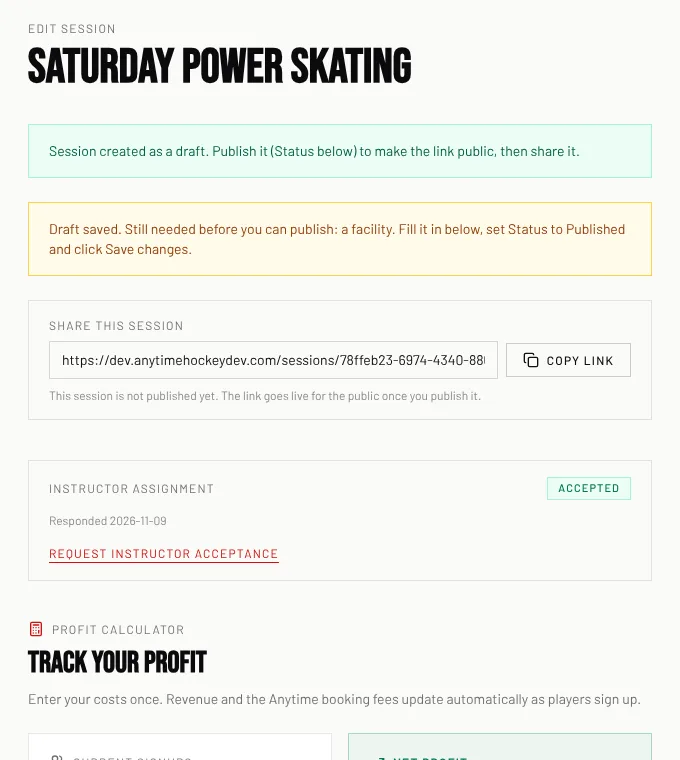
The draft opens with a yellow box that lists what is still needed before it can be published, for example "a facility".
- 4
To finish it, open it from My sessions or the Sessions list, fill in the missing parts, set Status to Published and click Save changes.
Good to know
- Drafts are never shown to parents.
- An untitled draft is saved as "Untitled draft" until you give it a title.
Related
Still stuck? Click the red HELP button at the bottom right and tell us what happened.